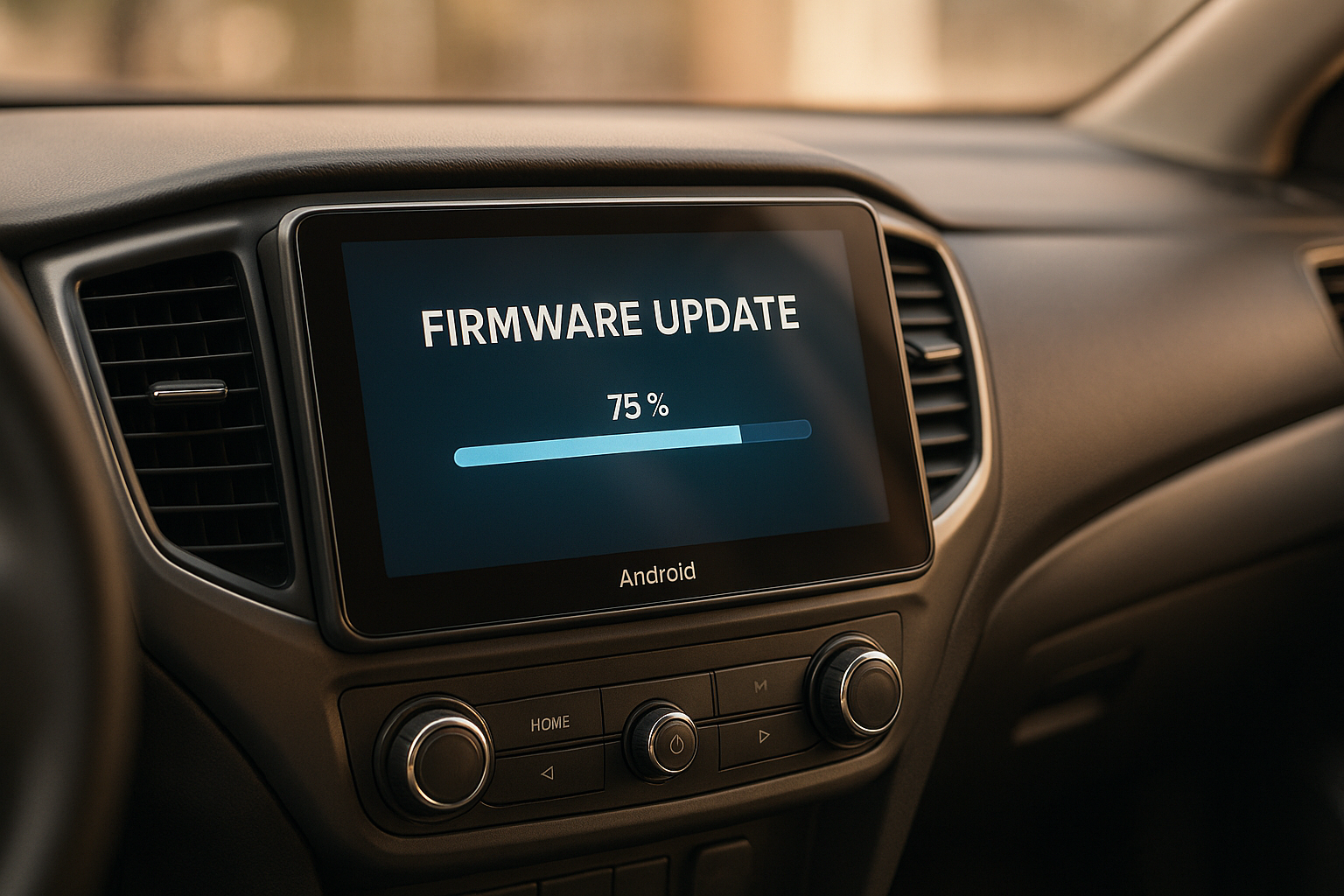
Updating the firmware on your Android car stereo can fix bugs, improve performance, and add new features. The process generally takes 30-45 minutes and requires a USB drive, the correct firmware files, and attention to detail. Here’s a quick overview:
- Preparation: Identify your stereo model, back up your settings, and ensure you have a USB drive formatted to FAT32.
- Download Firmware: Get the correct firmware files from the manufacturer’s official website. Avoid third-party sources.
- File Setup: Extract the firmware files and copy them to the root directory of your USB drive.
- Installation: Connect the USB to your stereo, navigate to the update menu, and follow on-screen instructions.
- Post-Update: Verify the firmware version to confirm the update was successful.
Follow these steps carefully to avoid issues like system errors or bricking your device. Always use official sources and keep your stereo powered throughout the process.
How to Update Your Android Car Stereo Firmware for ZLINK5 & New Features?
Preparation and Prerequisites
Before diving into a firmware update, it’s essential to get both your device and tools ready. A little preparation goes a long way in ensuring a smooth and hassle-free process.
Check Device Compatibility
Start by identifying your car stereo model. You can usually find this information on a label or in the "About Device" menu. It’s often a mix of letters and numbers, like "YL-8227."
Each model requires specific firmware files, and using the wrong one could permanently damage your device – a problem commonly referred to as "bricking." To avoid this, head over to the manufacturer’s official website or support portal. Cross-check your model number with the available firmware updates. For added clarity, consult your product manual or the manufacturer’s support resources. For instance, YeeElek offers detailed compatibility charts on their support pages, which make it easier to match your model with the correct firmware. Pay close attention to hardware revision numbers, as the same model might feature different internal components depending on its production date.
Back Up Your Data and Settings
Keep in mind that updating firmware typically wipes all custom settings. This includes your saved radio stations, Bluetooth pairings, navigation preferences, and audio equalizer settings. Most Android car stereos don’t automatically save these configurations during updates.
To avoid losing important settings, document them manually. Note down details like your favorite radio frequencies, paired Bluetooth devices, display brightness levels, and audio settings. While advanced users might use specialized tools to create a full system backup, a manual record of key configurations is the safest and simplest approach for most people.
Collect Required Tools
Gather the necessary tools before starting. You’ll need a USB flash drive (up to 64GB, formatted to FAT32) or a Micro SD card with an adapter. If your car stereo doesn’t recognize the storage device, try using an older USB version.
Make sure your computer is equipped with file extraction software like WinRAR or 7-Zip. Firmware files are usually compressed in formats like .zip or .RAR, so you’ll need these tools to extract them properly [1].
It’s crucial to keep your car stereo powered throughout the update process [1]. A power interruption during installation could corrupt system files, potentially requiring professional repair – or worse, a complete replacement.
Lastly, have a computer and smartphone handy. You’ll need them for downloading the firmware files and referencing support documentation. Once everything is in place, you’re ready to move on to downloading and preparing the firmware files.
Download and Prepare Firmware Files
Now that your device and tools are set up, the next step is to download and prepare the correct firmware file. Picking the right one is crucial – using the wrong firmware can leave your stereo non-functional.
Find Official Firmware Files
The best place to find firmware files is the manufacturer’s official website or support portal. Look for sections like "Downloads", "Support," or "Firmware Updates." For example, YeeElek’s support pages typically include compatibility charts to help you confirm your model and firmware version.
To find the correct firmware, you’ll need your exact model number – and sometimes the hardware revision. Firmware files are often packaged as compressed archives with names like YL-8227_V2.1_20240815.zip, which include the model number, version, and release date.
Steer clear of unofficial or third-party websites when downloading firmware. Files from these sources can be outdated, altered, or even harmful. If you can’t find the firmware for your model on the official site, reach out to the manufacturer’s customer support. Once you’ve downloaded the correct file, you can prepare your USB drive for the update.
Format USB Drive and Transfer Files
Your USB drive needs to be formatted to FAT32 for compatibility [2][4][1]. If you’re using Windows, you can format the drive to FAT32 through File Explorer.
Stick with a USB drive of 32 GB or smaller. While FAT32 supports larger sizes, many car stereos struggle with drives over 32 GB or 64 GB [3][1]. Larger drives often default to formats like exFAT or NTFS, which many stereos can’t read [3].
After formatting, use tools like WinRAR or 7-Zip to extract the firmware files. Copy these extracted files directly to the root directory of your USB drive. Avoid creating any folders unless the manufacturer specifically instructs you to do so. Once the files are on the drive, take a moment to verify their integrity before moving forward.
Check File Integrity
Ensuring the firmware file’s integrity is key to avoiding installation errors or potential damage to your system. Corrupted files can cause incomplete updates, so this step is essential.
To verify the file, check its SHA256 hash. On Windows, open PowerShell and run the command:
Get-FileHash filename.zip -Algorithm SHA256
Compare the resulting hash with the official SHA256 value provided by the manufacturer on their download page or documentation [5]. If the values don’t match, don’t proceed – download the file again from the official source.
It’s also a good idea to verify the hash after transferring the file to your USB drive to confirm there was no corruption during the copy process. If everything checks out, your USB drive is ready for a smooth and secure firmware update. Next, you’ll connect it to your car stereo to begin the installation.
Install the Firmware
Now that your files are ready and verified, it’s time to install the firmware. This step is crucial, and you’ll need to proceed carefully – interruptions during installation can cause serious issues with your system.
Connect the USB Drive to Your Stereo
Take the USB drive containing the verified firmware files and plug it into a USB port on your Android car stereo. Many stereos come with multiple USB ports, but only one is typically designated for firmware updates [1]. If the update doesn’t start automatically, try using a different USB port.
Make sure the firmware file is saved in the root directory of the USB drive [1][4]. If your stereo doesn’t detect the update file, you can try creating a specific folder structure: mnt > media_rw > udisk. Place the update.zip file inside the udisk folder and try again [4].
Access the System Update Menu
Once your stereo recognizes the USB drive, navigate to the firmware update section through the stereo’s interface. The exact menu path varies depending on the manufacturer, but it’s usually found under "Settings" > "System" > "System Update" or "Firmware Update." In some cases, the system may automatically prompt you to begin the update process.
Look for options labeled "Local Update", "USB Update," or "Manual Update" – these indicate that the system is reading the update file from your connected USB drive. Once you confirm that the update option is available, you can proceed with the installation.
Start and Finish the Update Process
Select the firmware file and confirm the installation. It’s critical to avoid disconnecting the USB drive while the update is in progress. If the update method requires it, ensure you have a stable internet connection [6][7].
Most systems will restart automatically once the installation is complete. Some stereos may display a message like "Update Successful" before rebooting. Leave the USB drive connected until the system fully restarts and shows the updated firmware version on the screen.
sbb-itb-e12833d
Fix Common Installation Problems
After completing the installation process, you might run into issues where your device doesn’t recognize the firmware. For example, the USB drive or firmware file might not be detected. Don’t worry – here are some steps to help you troubleshoot and fix the problem. Start by checking your USB connection and confirming the drive is formatted correctly.
USB Drive or Files Not Recognized
If your stereo isn’t detecting the firmware file, the problem is usually tied to a weak USB connection or incorrect drive formatting. Begin by inspecting your USB cable. A damaged or low-quality cable can disrupt detection. Try using a shorter cable (less than 3 feet), like the one that came with your smartphone, to ensure a stable connection.
If the cable seems fine but the issue persists, check the USB port itself. Look for any debris, dust, or damage that could interfere with the connection. Use compressed air or a soft brush to clean out any lint or particles.
Next, confirm that your USB drive is formatted as FAT32, which is the required format for the firmware installation. If you’re using a USB 3.0 drive, try connecting it with a USB 2.0 cable to reduce transfer speeds and improve compatibility.
If these steps don’t solve the issue, it’s best to reach out to YeeElek’s technical support team for further assistance. They can guide you through additional solutions or address any hardware concerns.
Verify Installation and Test System
Check Firmware Version Number
Turn on your stereo and let it boot up completely. Once on the Home screen, go to "Settings" and find either "System Settings" or "General". Look for options like "Firmware Version" or "About Device" to check your current firmware details [4][8].
You should see version identifiers such as "K2501_NWD" or "K2501_UP", which indicate the installed firmware version [4][8]. Confirm that both the CPU and MCU version numbers match the updated firmware – typically labeled as something like "2.00" for both [8].
If the displayed versions don’t match the new firmware or still show the previous version, the update might not have been successful. Make a note of the version numbers for your records [4]. If there’s a mismatch, check the troubleshooting section for steps to resolve the issue.
Conclusion
Updating firmware successfully requires careful planning and attention to detail. Start by backing up your data, ensuring you have the correct firmware files, and following the steps precisely. These precautions can help you avoid common issues like system failures or corrupted updates.
Pay close attention to key steps: double-check your device model, properly format the USB drive, and ensure a stable power supply throughout the process. Interrupting power or removing the USB drive during installation can lead to serious problems.
As outlined earlier, thorough preparation is the key to a smooth update. After completing the installation, confirm the new firmware version in your system settings to ensure everything is in place. With the update installed, your Android car stereo should deliver better performance, bug fixes, and possibly some new features. If problems persist, remember that technical support is just a call or email away.
For persistent issues, reach out to YeeElek’s technical support team. They can guide you through troubleshooting and provide solutions tailored to your device.
Staying on top of firmware updates ensures your system remains functional, secure, and compatible with the latest apps and services.
FAQs
What can I do if my Android car stereo doesn’t detect the USB drive during a firmware update?
If your Android car stereo isn’t recognizing the USB drive during a firmware update, here’s what you can do to troubleshoot:
First, make sure the USB drive is formatted to FAT32. Next, double-check that the firmware file is named update.zip and placed in the root directory of the USB drive – this ensures the stereo can locate it.
If the problem continues, try these steps:
- Reinsert the USB drive firmly into the port to ensure a secure connection.
- Confirm that the firmware file matches your stereo’s specific model and version requirements.
- Test the USB port and cable to rule out any hardware issues.
Still stuck? Restart your stereo system and consult the user manual for more detailed guidance. For dependable Android car stereos and excellent customer support, check out YeeElek, a trusted name in in-car multimedia solutions.
How do I make sure I download the correct firmware for my Android car stereo?
To make sure you get the right firmware for your car stereo, begin by checking its current firmware version. You’ll typically find this in the system settings under sections like About or System Info. Once you’ve noted the version, compare it with the official firmware list from the manufacturer or another reliable source to ensure it’s the correct match.
Installing the wrong firmware can lead to problems, so take a moment to verify the stereo’s model number and any specific instructions from the manufacturer before moving forward with the update.
What should I do if my Android car stereo fails to update its firmware and reverts to the old version after restarting?
If your firmware update doesn’t work and your stereo reverts to the old version after rebooting, the first step is to try a factory reset or restore the stereo to its default settings. This simple step often clears up minor update glitches.
Still having trouble? Double-check that you’re using the correct firmware file. Download it again from a trusted source, confirm the file name (it’s usually something like "update.zip"), and carefully follow the update instructions specific to your stereo model. Also, make sure the USB drive or SD card you’re using is properly formatted and free of errors.
If the issue continues, it’s time to reach out to the manufacturer’s customer support. They can offer more troubleshooting steps or help address any software compatibility problems you might be facing.
