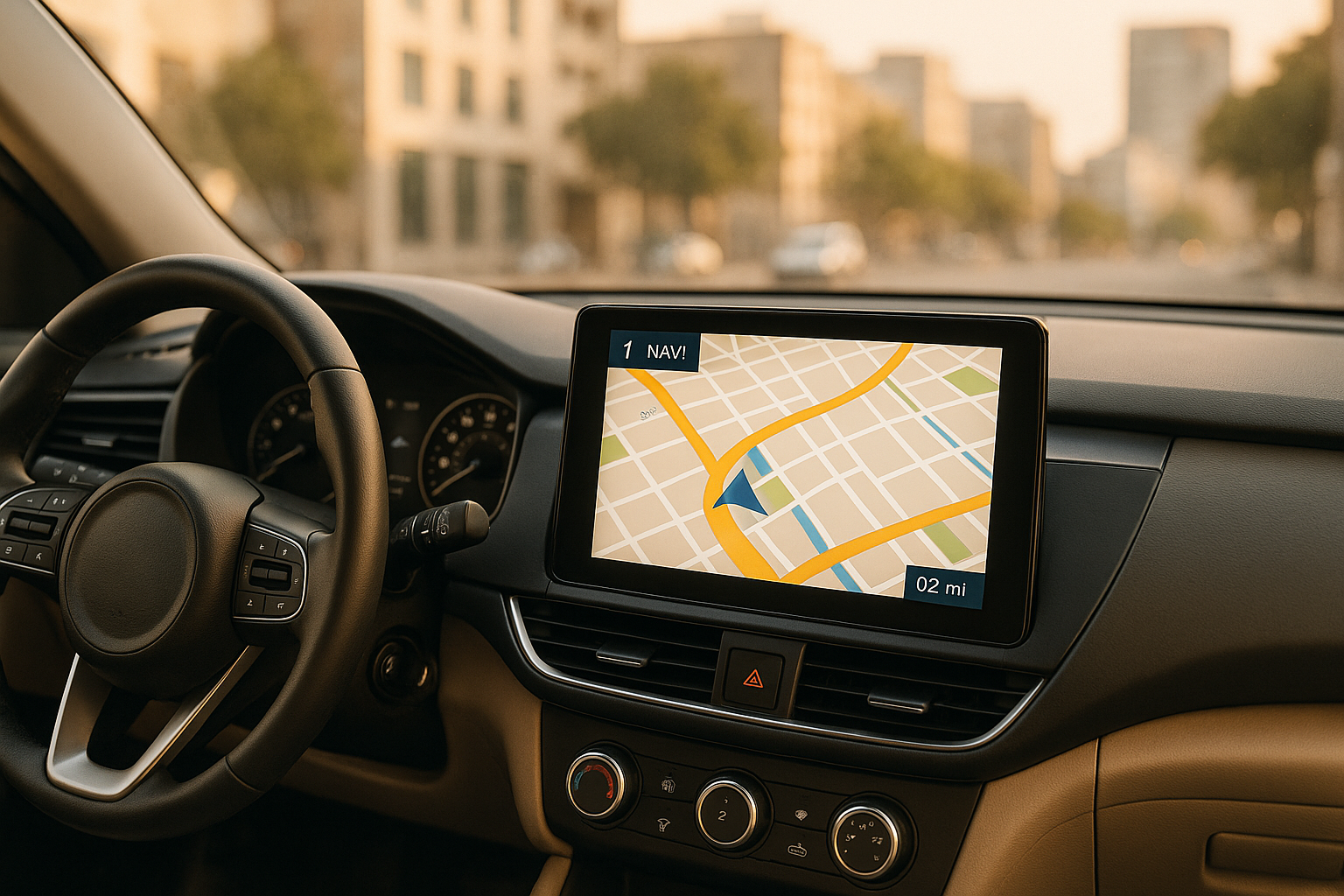
Car navigation systems are convenient but come with challenges. Common issues include GPS signal loss, outdated maps, connectivity problems, and software glitches. These can disrupt your driving experience but are often easy to fix with the right steps.
Key Takeaways:
- GPS Issues: Caused by tall buildings, weather, or faulty hardware. Fix by recalibrating GPS, clearing cache, or updating firmware.
- Outdated Maps: Leads to incorrect routes. Update maps regularly via Wi-Fi or download offline maps.
- Connection Problems: Bluetooth or Android Auto issues can be resolved by re-pairing devices, updating apps, or using quality cables.
- Software Glitches: Restart the system, clear cache, or perform a factory reset if needed.
Preventative Care: Regular updates, cleaning, and proper setup can keep your system reliable. Brands like YeeElek offer dependable Android-based systems with user-friendly features and solid support.
Android Car Stereo No GPS signal/ GPS not found trouble fixed, GPS 4G LTE antenna install guide!
A dependable navigation system is essential for safe driving, but Android-based systems can sometimes face challenges that disrupt your journey. Understanding these issues can help you address them quickly. Let’s break down the most common problems and their solutions.
GPS Signal Loss and Wrong Directions
Tall buildings and dense urban areas, like downtown New York, can block satellite signals, leading to GPS disruptions. This may result in your system losing its ability to track your location for several blocks.
Severe weather conditions, such as heavy rain or snow, can also interfere with GPS signals, causing delays in position updates or complete signal loss.
Another potential issue lies with the hardware itself. A faulty GPS antenna or receiver can cause erratic movements on the map, incorrect directions, or display your vehicle in the wrong location entirely.
Lastly, outdated maps can make matters worse by providing inaccurate routes or missing new roads.
Road networks are constantly evolving due to construction, new developments, and infrastructure changes. If your navigation system relies on old map data, it may lead you into dead ends or fail to recognize newly built areas.
Errors in address databases can also cause trouble. Older systems might not include recently developed neighborhoods or commercial zones, leading to incorrect or misleading directions.
Connection issues can further complicate navigation.
Connection and Integration Issues
Bluetooth connectivity problems can disrupt the integration between your smartphone and the navigation system. This can cut off real-time updates and hands-free features, making your drive less convenient.
Wi-Fi issues are another common culprit. Many Android navigation systems depend on either the car’s built-in cellular network or your smartphone’s hotspot to download map updates and get live traffic information. When these connections fail, the system’s functionality becomes limited.
Android Auto crashes or connection failures can also leave navigation features unresponsive. These issues often stem from outdated app versions, faulty USB cables, or compatibility conflicts between the phone and the car’s system software.
Software glitches can add even more challenges.
Software Bugs and App Crashes
Frozen screens can prevent you from entering destinations or adjusting settings, forcing you to restart the system – a frustrating delay during a trip.
Memory overloads can cause apps to crash, leaving you without guidance during long drives.
Touchscreen calibration problems are another headache. Over time, the screen may start misreading your inputs, making it harder to interact with the system. This can happen as the hardware ages or after software updates that fail to account for specific screen configurations.
Compatibility issues between navigation apps and the car’s Android version or hardware can lead to slow performance, random shutdowns, or non-functional features, further complicating your driving experience.
Now that you’re familiar with common navigation system hiccups, here are some practical solutions. These steps can help you resolve most issues without needing professional assistance or costly repairs.
Fixing GPS Signal Problems
Start by inspecting your GPS antenna. It’s usually located near the windshield or roof, so make sure the connections are secure and free from corrosion. A loose or damaged connection can disrupt the signal.
Recalibrating your GPS can also help. Drive in a figure-eight pattern in an open area to recalibrate the system manually. If you’re using an Android navigation system, check for a built-in calibration option under "Location Services" or "GPS Settings" in the system menu.
Another quick fix is clearing the Maps app cache. Go to Settings > Apps > Maps > Storage, clear the cache, and restart the system.
Check for GPS firmware updates by navigating to Settings > System Updates. Updates often include fixes that can improve GPS performance.
Lastly, be mindful of signal blockers. Reposition any metallic objects inside the car that might interfere with the GPS, and when driving in urban areas with tall buildings, try to stick to major highways where satellite visibility is better.
Updating Maps and Software
To ensure your navigation system works efficiently, keep your maps and software up-to-date. Park your vehicle, connect to a reliable Wi-Fi network, and access the update menu via Settings > System > Software Update. While some systems update automatically, it’s a good idea to initiate manual checks to confirm you’re on the latest version.
If your navigation app supports offline maps, download them by selecting the "Download Maps" or "Offline Maps" option. Be aware that offline maps take up significant storage space, so make sure there’s enough free space on your system.
Double-check that your time zone is set to "United States" and that your system has ample storage for updates to avoid interruptions.
Fixing Connection Problems
If you’re dealing with Bluetooth issues, reset the connection by forgetting and re-pairing your phone. Go to Settings > Bluetooth, remove the existing pairing, and reconnect. Ensure your phone’s Bluetooth is set to "Discoverable" during this process.
Outdated versions of Android Auto can also cause problems. Update it through the Google Play Store, restart both your phone and the car system, and reconnect.
For wired connections, use a high-quality USB cable. If you’ve enabled USB Debugging in your phone’s Developer Options, turn it off to prevent interference.
If your system relies on your phone’s internet connection, configure the Wi-Fi hotspot settings carefully. Use a unique hotspot name for your car, set it to WPA2 security, and avoid special characters in the name.
Clearing the Android Auto cache can also resolve issues. On your phone, go to Settings > Apps > Android Auto > Storage and select "Clear Cache."
Fixing Software and Screen Problems
A soft reset is often the easiest way to fix software glitches. Hold the power button for 10–15 seconds to restart the system. If that doesn’t work, try clearing the system cache. Power off the system, then hold the power button and volume-up button together until the recovery menu appears. Select "Wipe Cache Partition" and confirm.
Freeing up system memory can also improve performance. Go to Settings > Apps > Running Apps and close any unnecessary background applications.
If your touchscreen is unresponsive or inaccurate, calibrate it by navigating to Settings > Display > Touch Calibration.
Suspect a recently installed app? Uninstall it temporarily and check if the system’s performance improves. If it does, the app may have been causing conflicts.
For persistent issues, a factory reset might be necessary. Back up your data first, then go to Settings > System > Reset Options > Factory Data Reset. After the reset, you’ll need to reconfigure your settings and re-download maps.
Finally, update individual apps through the Google Play Store if your system supports it. Open the Play Store, go to "My Apps & Games", and update any navigation-related apps. Keeping apps current ensures better compatibility and overall performance.
sbb-itb-e12833d
Keeping Your System Running Well
Once you’ve resolved any issues with your system, keeping it in good shape is essential to avoid future problems. The good news? Maintaining your Android car navigation system is easier than you might think. A few simple habits can go a long way in ensuring it stays reliable for years to come.
Regular Maintenance Tips
- Keep it clean. Use a microfiber cloth to gently wipe the screen. For stubborn smudges, a small amount of isopropyl alcohol (70% or lower) works well. Avoid harsh cleaning agents or using too much liquid, as these can damage the system.
- Stay updated. Check for software updates regularly (go to Settings > System > Software Update). Always use a stable Wi-Fi connection and perform updates only when the vehicle is parked.
- Manage storage wisely. Clear cached data (Settings > Storage) and uninstall apps you don’t use. If your system supports expandable storage, consider a high-speed microSD card to improve performance.
- Prevent electrical issues. Inspect charging ports and cables for signs of wear, corrosion, or loose connections. Invest in quality USB cables and ensure air vents remain unobstructed to prevent overheating.
Setting Up Your System for US Use
To get the best performance in the United States, adjust your system settings for local conditions:
- Set the location mode to "High Accuracy" (Settings > Location > Mode). This combines GPS, Wi-Fi, and mobile networks for faster and more precise location tracking.
- Refresh GPS data by downloading the "GPS Test" app from the Play Store. Use the app to tap ‘CLEAR AGPS’ and then ‘UPDATE AGPS.’ Park outdoors for 10–15 minutes for optimal results.
- Configure regional settings: switch temperature to Fahrenheit, distance to miles, and set the time zone to your local area with automatic daylight saving time enabled.
- Use navigation apps tailored for U.S. roads. Apps like Google Maps and Waze are excellent choices, offering real-time traffic updates, rerouting options, and community-driven alerts for accidents, speed traps, and road closures.
Using YeeElek System Features
Beyond basic maintenance, tapping into your system’s features can make a big difference in performance. YeeElek Android Car Multimedia Players are designed with a simple, user-friendly interface and reliable functionality. Their seamless Android Auto integration allows you to customize the system to suit your driving habits, making navigation both easy and efficient.
YeeElek’s commitment to quality means fewer product returns and dependable performance. Plus, the 1-year warranty and technical support ensure any issues are addressed quickly. As one happy customer shared:
"YeeElek was a pleasure to work with… Products were delivered on time, packaged well, and of excellent quality."
- Johnny Andrey, Product Engineer
YeeElek systems also offer flexible integration to suit various vehicles and driving needs. With their OEM/ODM services, you can even customize software settings and features to better match your preferences, ensuring your navigation system delivers exactly what you need.
Final Thoughts and Recommendations
Navigation system hiccups don’t have to be a headache. Most problems stem from a handful of common causes that can often be resolved with regular maintenance and simple troubleshooting. Taking a bit of preventative care can save you both time and frustration. Below, we’ve summarized key steps for resolving navigation issues and why YeeElek stands out as a trusted leader in navigation solutions.
To keep your navigation system running smoothly, consistent maintenance is key. Here’s what you can do:
- Update your maps regularly: Aim for monthly updates to ensure accuracy.
- Clear cached data: This helps free up space and prevents glitches.
- Optimize GPS settings: Make sure your system is set for high accuracy.
When problems occur, start with the basics: restart your system, check all connections, and review your location settings. If these steps don’t resolve the issue, refer to the troubleshooting guide provided earlier. For recurring problems, deeper troubleshooting or professional support may be necessary.
Since 2010, YeeElek has been at the forefront of Android car multimedia technology, offering integrated navigation solutions tailored to meet diverse driving needs[1]. Their products provide seamless Android Auto integration and allow for extensive OEM/ODM customization, making them adaptable to specific requirements. With a focus on delivering quality, YeeElek backs its products with advanced manufacturing, a 1-year warranty, and dedicated technical support.
Customer feedback highlights their excellence. Brandon Haynes shared his experience:
"I can’t say enough good things about YeeElek and their team. Throughout the development of our product, we worked with several different Android car multimedia manufacturers, but YeeElek was the only one that could meet our needs. They are an incredibly talented group, eager to help, and flexible. I couldn’t be happier with how our project turned out!" – Brandon Haynes
For drivers looking to minimize navigation troubles, YeeElek’s Android Auto solutions deliver reliability, customization, and top-notch performance, ensuring a smoother and more enjoyable driving experience.
FAQs
How can I avoid losing GPS signals in cities with tall buildings?
To reduce the chances of losing GPS signals in cities with towering buildings, opt for devices that use dual-frequency GNSS technology. This feature helps cut down inaccuracies caused by signal reflections and interference from nearby structures.
You can also improve signal reliability by positioning your navigation system’s antenna in an open, unobstructed spot – steer clear of placing it near car roofs or metallic surfaces. Whenever possible, avoid parking or driving too close to high-rise buildings, as they can disrupt or block satellite signals. Following these tips can ensure a smoother and more precise navigation experience in busy urban areas.
If your car’s navigation system keeps crashing or freezing, here are some steps that might help you fix it:
- Restart the system and check for software updates. Running outdated software can often cause problems.
- Clear the app’s cache and data in your device’s settings to get rid of any temporary issues.
- Make sure your GPS antenna is properly connected. If necessary, recalibrate the GPS to ensure a stronger signal.
- If nothing else works, try uninstalling and reinstalling the app to reset its functionality.
These steps can go a long way in keeping your navigation system running smoothly and without interruptions.
Keeping your car’s navigation maps current is important, and updating them every 3 to 6 months is a smart move. These updates help your system stay in sync with the latest road changes, new construction, and shifting traffic patterns.
Up-to-date maps mean more accurate directions and a smoother, more efficient driving experience. Many navigation systems now include features like automatic updates or reminders, so take a moment to check your settings and make staying updated hassle-free.
